
First Steps
If you have any problem, make sure to contact us on Discord or via E-Mail on support@avo-network.com
If you want to use Voice on our Network, which you probably do, you need to use our Voice Client. You can use our Voice Client in two different ways:
- On our Website (https://voice.avo-network.com/ui)
- As an seperate Application
If you want to use the client on our Website, click on the link above. After that you can skip to the "Setting up the Voice Client section". If you want to use the Voice Client as a seperate Application, download the installer from here: https://avo-network.com/content/Avo-Voice.exe
Installation of the Voice Client Application
After you've downloaded the .exe File, right click it and open it as an administrator. Don't worry if no window appears. Just wait shortly. If you have Desktop Shortcuts enabled, you should see a new Icon appear, otherwise you can find the application via the Windows Search, if you search for "Avo Voice". Then, open the Application.
Setting up the Voice Client
To use the Voice Client, you need to Teamspeak 3 installed on your Computer. You can download Teamspeak from here.
After you've installed Teamspeak 3, open it and Setup things like your microphone and speaker.
Then, click on Connections and Connect. A new window should appear. In the "Server Nickname or Adress" Box, type in the following IP Adress: 147.93.127.38:26683
In the Nickname Box, type your Real Name. You can leave the "Server Password" Box empty. Next, you'll link your Teamspeak Account to your Avo Network Account. To do that, login into your Avo Network Account on our Website and go to your Profile. Then, click on the "Link Teamspeak" Button. In the Box, you need to enter your individual Teamspeak ID. To get your Teamspeak ID follow the Steps below.
Get your Teamspeak ID
In the Teamspeak Window Open the Tools Tab at the Top of the Application and go to "Identities"

In The new window, click on "Go Advanced"
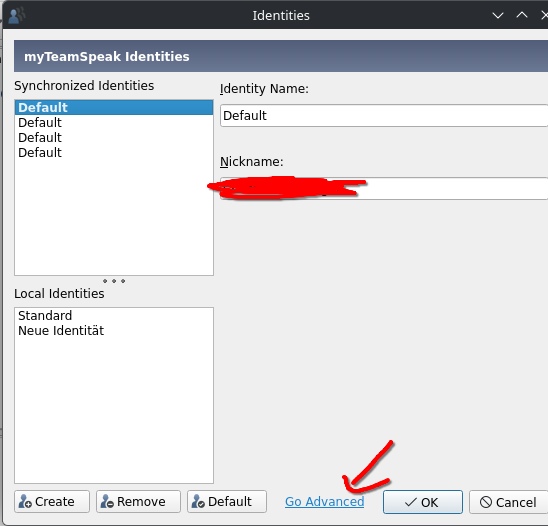
Then, click on Default "Local Identity"
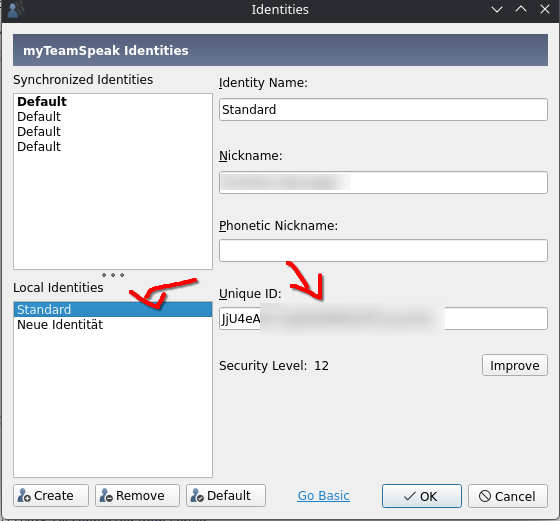
Copy the Text in the "Unique ID" Box and Paste it into the Box on the Website. If you don't get any error, you have successfuly linked your Teamspeak Account to your Avo Network Account.
No comments to display
No comments to display