
Setting Up EuroScope & Connecting to Our Network + Example Sector Files
This is the second page of the guide on how to connect to the AVO Network as a ATC with EuroScope! Remember, if you need any help or have questions, just open a ticket in our Discord Server our write an E-Mail to support@avo-network.com and a Staff member will be answering as quickly as possible!
Setting up EuroScope
- Search up EuroScope and open it.
- Now a Window appears, and you have to select a .prf file. You need to install Sector packages. The Sector packages contain .prf files that tell EuroScope things like where Airports are located and how they are structured. Here are the Download Links for our Example Sector Files for Germany.
https://avo-network.com/EDGG.zip
https://avo-network.com/EDWW.zip
https://avo-network.com/EDMM.zip
3. After downloading a Sector, extract it.
4. Now, in the Window in EuroScope, look up in the folder where you extracted the .zip file (most times on Windows, it´s the ,,Downloads" folder).
5. click on one of the extracted Folders, in my case, i clicked on EDGG.
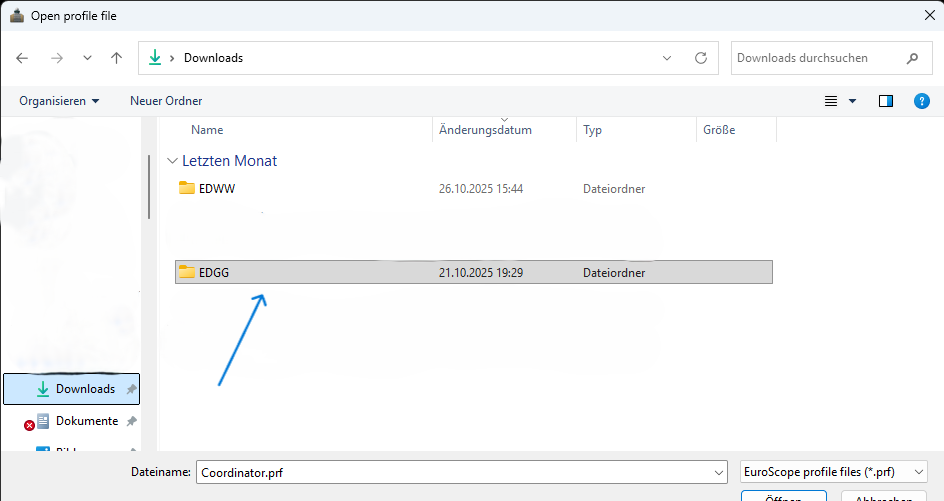
6. Click on all other folders in the extracted one, until you see .prf files. You can choose any one. Now, it doesn't matter just for connecting to the network.
Connecting to our Network
- When all loaded and you are in EuroScope, click on the ,,connect" button on the upper left of your screen.

2. Now you have a Window. Here, you fill in your Full Name (red arrow), your CID (blue arrow) and your password (green arrow). Next, you choose what facility you want to be (yellow arrow) and your current Rating (orange arrow). At ,,Server" you choose the Option AVONET (black arrow). And the last thing, you write down your Controller Callsign (gray arrow). In my Case it´s EDDF_S_TWR.
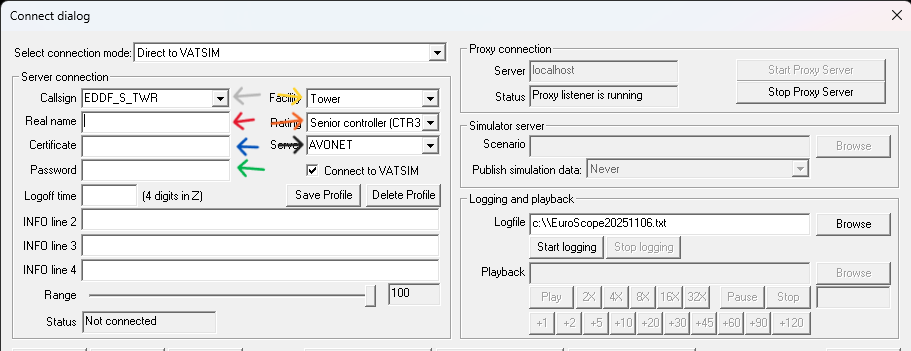
3. if you completed all this tasks then you are ready to connect! Just klick on ,,connect"
And now you should be connected with our Network!
If you see that problems occur, feel free to contact the support by creating a ticket!